Field Photography · PhotoPills · Lesson 14 Shadow Tools, My Stuff & Settings
1 / 10
Field Photography · PhotoPills
Tying Up The Loose Ends
The final lesson in this series: one panel we skipped all the way back in Lesson 2, and a real tour of the My Stuff menu you've only glimpsed since Lesson 1.

Nothing new to learn conceptually here — just a few genuinely useful tools that didn't fit anywhere else, plus the housekeeping that keeps years of planning work from disappearing.

Field Photography · PhotoPills
Panel 1: Shadow Length Calculator
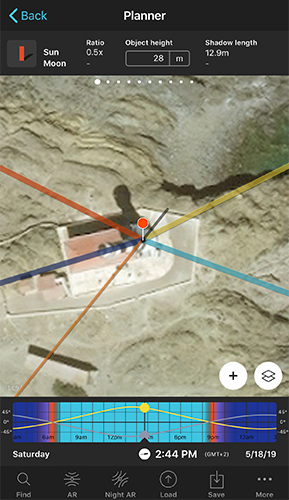
Planner Panel 1 showing a shadow length calculator for a 28 meter tall lighthouse, with the shadow drawn on the map matching the real building's shadow
A 28m lighthouse casting a 12.9m shadow — matching the real shadow visible on the map

The very first Top Panel, and one we skipped until now. It calculates how long a shadow an object of a given height will cast — for the Red Pin's position, at the selected date and time.
Field Photography · PhotoPills
Using The Shadow Calculator
  1. 1
    Place the Red Pin on your subject
    The building, statue, or person casting the shadow.
  2. 2
    Enter its height
    Tap the Object height box and type it in.
  3. 3
    Tap the Shadow button
    The shadow's length and direction draw right on the map — using the Sun by day, the Moon by night.
  4. 4
    Drag the Time Bar
    Watch the shadow lengthen and rotate as the day goes by, to find the exact moment you want.
🗺️
There's a Shadow map layer too
Same on/off pattern as every other layer you've used in this series — find it via the Map Settings button.
Field Photography · PhotoPills
The My Stuff Menu, For Real This Time
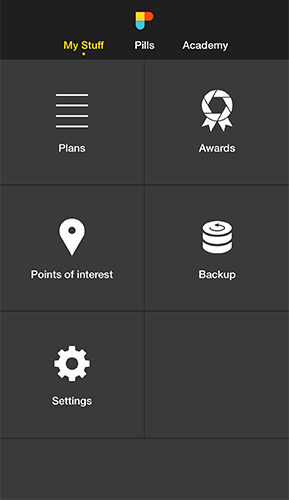
My Stuff menu grid showing Plans, Awards, Points of Interest, Backup, and Settings
Everything you've saved, all in one place

Back in Lesson 1 we covered this in one slide. Now that you've actually built Plans and Points of Interest across this whole series, it's worth a real look at what each piece does.
Field Photography · PhotoPills
Your Plans: A To-Do List Of Photos
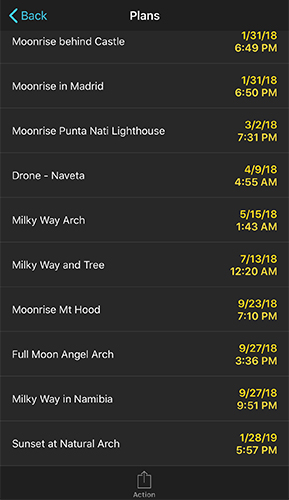
Plans list showing entries like Moonrise behind Castle, Milky Way Arch, Milky Way and Tree, Full Moon Angel Arch, and Milky Way in Namibia
A real PhotoPiller's Plans list — every one of these started with the tools in this series

Tap any Plan to see its full information sheet — location, Sun/Moon/Milky Way conditions, and any photos or notes you've added. Swipe left to delete one, or tap Action to email it, add a calendar alert, or share it.
Field Photography · PhotoPills
Points of Interest & Awards
  1. 📍
    Points of Interest
    Your own database of locations worth remembering — plus PhotoPills' built-in library of over 10,500 spots around the world.
  2. 🏆
    Awards
    PhotoPills' own photo contest — submit to Night, Moon, or Sun categories for a shot at cash prizes and a feature on their Instagram.
🗺️
POIs sync with the Load tool
Any Point of Interest you save here shows up under Load → Point of Interest back in the Planner, from Lesson 9.
Field Photography · PhotoPills
Backing Up Your Work
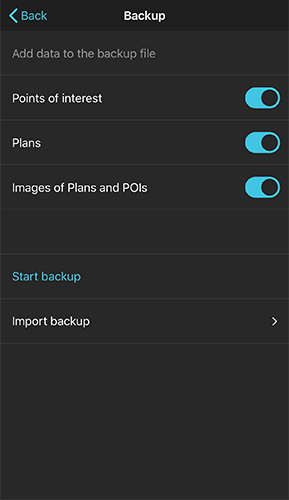
Backup screen with toggles for Points of interest, Plans, and Images of Plans and POIs, and buttons for Start backup and Import backup
Years of planning work, protected in one tap

Choose what to include, then tap Start backup — PhotoPills creates a file you can email to yourself. Getting a new phone, or just being careful? Use Import backup to restore everything from that file, Dropbox, or Google Drive.
Field Photography · PhotoPills
Settings Worth Knowing About
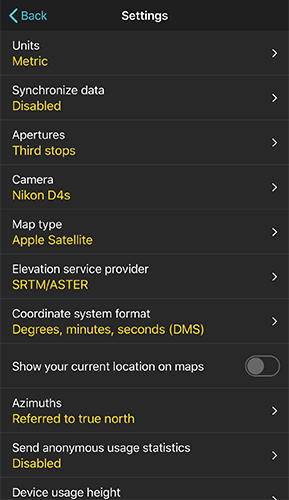
Settings screen listing Units, Synchronize data, Apertures, Camera, Map type, Elevation service provider, Coordinate system format, current location toggle, and Azimuths
Most of these you'll set once and forget
  1. 📷
    Camera
    Your default camera — saves re-selecting it in every calculator.
  2. 📏
    Units
    Metric or Imperial, applied everywhere in the app at once.
  3. 📱
    Device usage height
    How high off the ground you typically hold your phone — improves AR accuracy for things like the Subject Distance tool from Lesson 13.
Field Photography · PhotoPills
One Setting Worth Changing Now
☁️
Turn on Synchronize data
If you use PhotoPills on more than one device (iPhone and iPad, for example), this keeps your Plans and Points of Interest in sync via iCloud automatically.

Everything else in Settings is safe to leave on its default until you have a specific reason to change it.

Field Photography · PhotoPills
You've Finished The Whole Series!
1
Shadow calc
Panel 1, at last
2
Plans
Your photo to-do list
3
Backup
Don't lose your work
4
Settings
Sync, units, device height
CONGRATULATIONS
All 14 PhotoPills lessons complete
From enabling your first widget in Lesson 1 to backing up years of Plans here in Lesson 14 — you now know this app better than most people who've used it for years. Go plan something great.
⌂ Index