Field Photography · PhotoPills · Lesson 9 Finding, Saving & Loading Plans
1 / 10
Field Photography · PhotoPills
The Last Piece Of The Puzzle
Everything so far assumed you already knew the date. This lesson covers the tool for when you don't — plus how to actually hang onto everything you've planned.
🔍
Find
Work backward from a position to a date.
📥
Load
Jump straight to a saved spot.
💾
Save
Never lose a plan again.
Field Photography · PhotoPills
The Find Tool: Working Backward
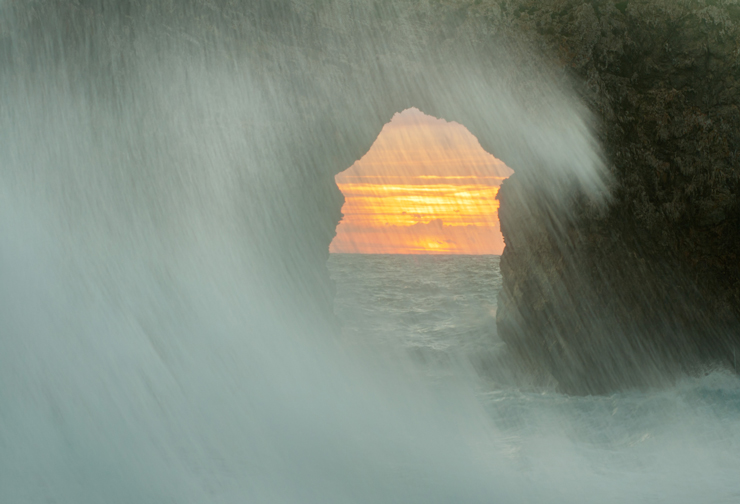
A dramatic sunset photographed through a natural sea arch, with waves crashing in the foreground
Planned entirely with Find — the exact date the Sun set right inside this arch

Every tool so far started with "here's the date, what will happen?" Find flips that around: "I know exactly where I want the Sun or Moon — when does that happen?" Perfect for a fixed shooting spot, like this sea arch, where you can't move the camera.
Field Photography · PhotoPills
Setting Up A Find Search
  1. 1
    Place the Red Pin, tap Find
    Choose Sun or Moon, at azimuth only or azimuth + elevation.
  2. 2
    Set a date range
    A year out for the Sun; two or more years for the Moon — it repeats less predictably.
  3. 3
    Set azimuth & elevation, with a margin of error
    Drag on the map, use AR, or type numbers directly. A small error range (3° azimuth, 0.5° elevation is typical) helps PhotoPills find more matches.
📸
AR is the fastest way
Standing at the actual spot? Point your phone where you want the Sun or Moon to appear and tap — it sets both azimuth and elevation at once.
Field Photography · PhotoPills
Reading The Results
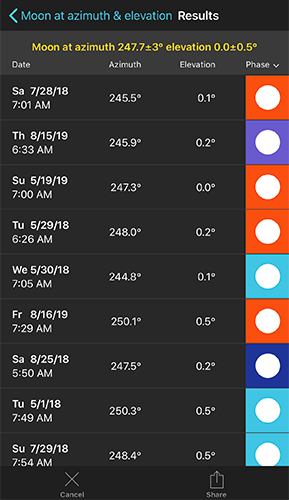
Find results table listing dates, times, azimuth, elevation, and moon phase color icons
Every date in range where your Moon-at-azimuth condition comes true

Tap the Phase column header to sort by Moon phase — handy for finding the closest Full Moon match instead of scrolling chronologically. Tap any row to load that exact date straight into the Planner.
Field Photography · PhotoPills
Load: Getting There Fast
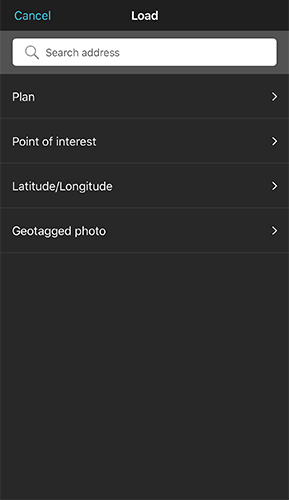
Load menu with options for Search address, Plan, Point of interest, Latitude/Longitude, and Geotagged photo
Five ways to place the Red Pin instantly
  1. 📍
    Search address
    Type any address to jump straight there.
  2. 📋
    Plan / Point of Interest
    Reload something you saved earlier — location, date, and time, all at once.
  3. 🖼️
    Geotagged photo
    Pick a photo from your camera roll and drop the pin exactly where it was taken.

Field Photography · PhotoPills
Save: Build Your Own Database
Save as menu with options for Plan and Point of interest
Two things worth saving, for two different reasons
Plan
Point of Interest
Location + date + time of a specific photo idea
Just a location worth remembering
Your photography to-do list
Your secret-spots database
Field Photography · PhotoPills
More > Date & Altitudes
  1. 📅
    More > Date
    Type an exact date, time, and time zone directly — a faster alternative to dragging the Time Bar.
  2. 🏔️
    More > Altitudes
    Manually set the Red Pin and Black Pin's altitude and offset — useful when shooting from a rooftop, or aligning with the top of a building.
↩️
Resets automatically
Move a pin more than 30m and its altitude reverts to the map's default — no need to remember to turn a custom value off.
Field Photography · PhotoPills
More > Horizon
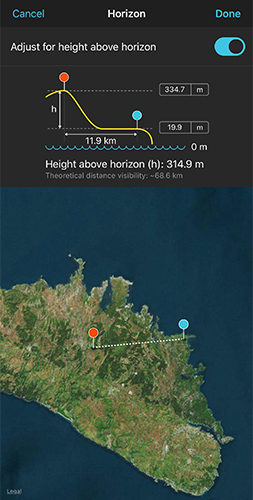
Horizon tool showing height above horizon calculation between a red pin on a mountain and a blue horizon pin, with a diagram of the sightline
Shooting from 315m up shifts your actual sunrise time earlier than sea level

Standing on a mountain or tall building, sunrise really does happen earlier for you — because you can see over the horizon that blocks people at sea level. Drop a second pin out at the horizon line, and PhotoPills corrects all its rise/set times and azimuths for your actual vantage point.

Field Photography · PhotoPills
More > Action: Get It Out Of The App
  1. 📧
    Email a Plan to a friend
    Sends a file another PhotoPiller can import directly into their own app.
  2. 📅
    Add a calendar alert
    Get reminded when shoot day arrives.
  3. 🗺️
    Send to Maps
    Get driving directions straight to the Red Pin.
  4. 📤
    Share or save as an image
    Post it, or just keep a screenshot for reference.
Field Photography · PhotoPills
You've Completed The Core Series!
1
Find
Position → date
2
Load
Jump to a spot
3
Save
Plans & Points of Interest
4
More
Date, Altitude, Horizon, Action
CONGRATULATIONS
You've completed the PhotoPills core series
Getting Started, The Planner, Sun, Moon, Milky Way, Camera Tools, Exposure & DoF, Star Trails & Spot Stars, and now Find/Save/Load. Watch this space for more advanced lessons: Eclipses, Meteor Showers, and Time Lapse.
⌂ Index