Club How-To · Pot-Luck/Pitch-In Sign-Up · Lesson 4 Signing Up For The Pot-Luck / Pitch-In
1 / 10
Club How-To · Pot-Luck/Pitch-In Sign-Up
Signing Up For The Pot-Luck / Pitch-In
A quick, friendly walkthrough of how to tell the club what you're bringing to the next pot-luck / pitch-in dinner — and how to change your mind later.
⏱️
Takes about a minute
It's just a few clicks and one small form. No special computer skills needed — we'll show you every screen.
🔑
You must be signed in
You need your member login (email + password) to add your own item. Anyone can look at the list, but only signed-in members can sign up.

Before a pot-luck / pitch-in meeting, the club uses this page so everyone can see what's already being brought — and so we don't end up with five bags of chips and no main dishes! You'll pick what you're bringing, and everyone else can see it too.

Club How-To · Pot-Luck/Pitch-In Sign-Up
Step 1: Find The Page
  1. 1
    Go to LeContePhotographicSociety.org and sign in
    Use the Members menu in the top-right corner if you're not already logged in.
  2. 2
    Look at the menu bar across the top of the page
    You'll see: Home, Gallery, Activities, Learning, Competition, Members.
  3. 3
    Click "Activities"
    A small drop-down menu will open underneath it.
  4. 4
    Click "Pot-Luck/Pitch-In"
    It's the last item in the drop-down list.
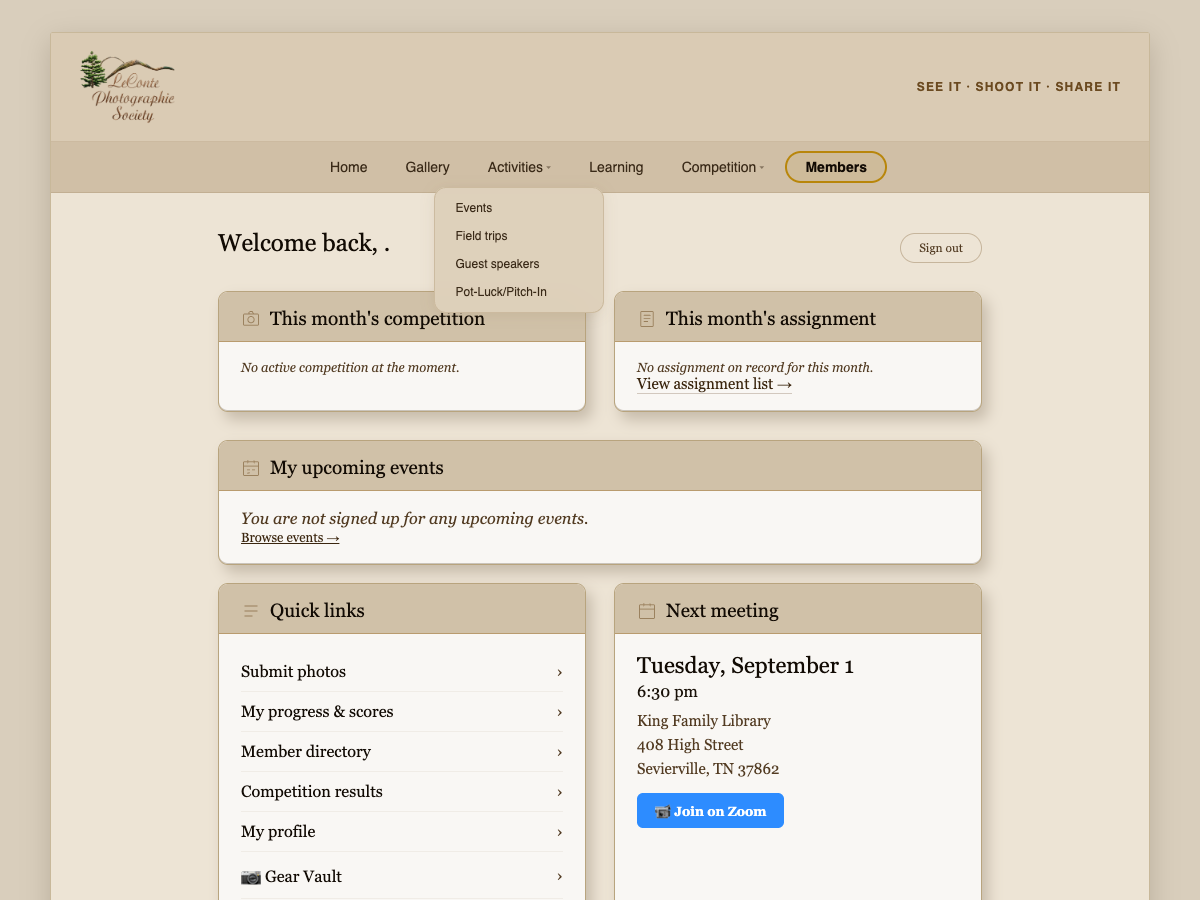
Activities menu open, showing the Pot-Luck/Pitch-In link
Activities ▾ → Pot-Luck/Pitch-In
Club How-To · Pot-Luck/Pitch-In Sign-Up
Not Signed In Yet?
⚠️
You can look, but you can't sign up
If you land on this page before logging in, you can still see what everyone is bringing — but there's no form to add your own item.
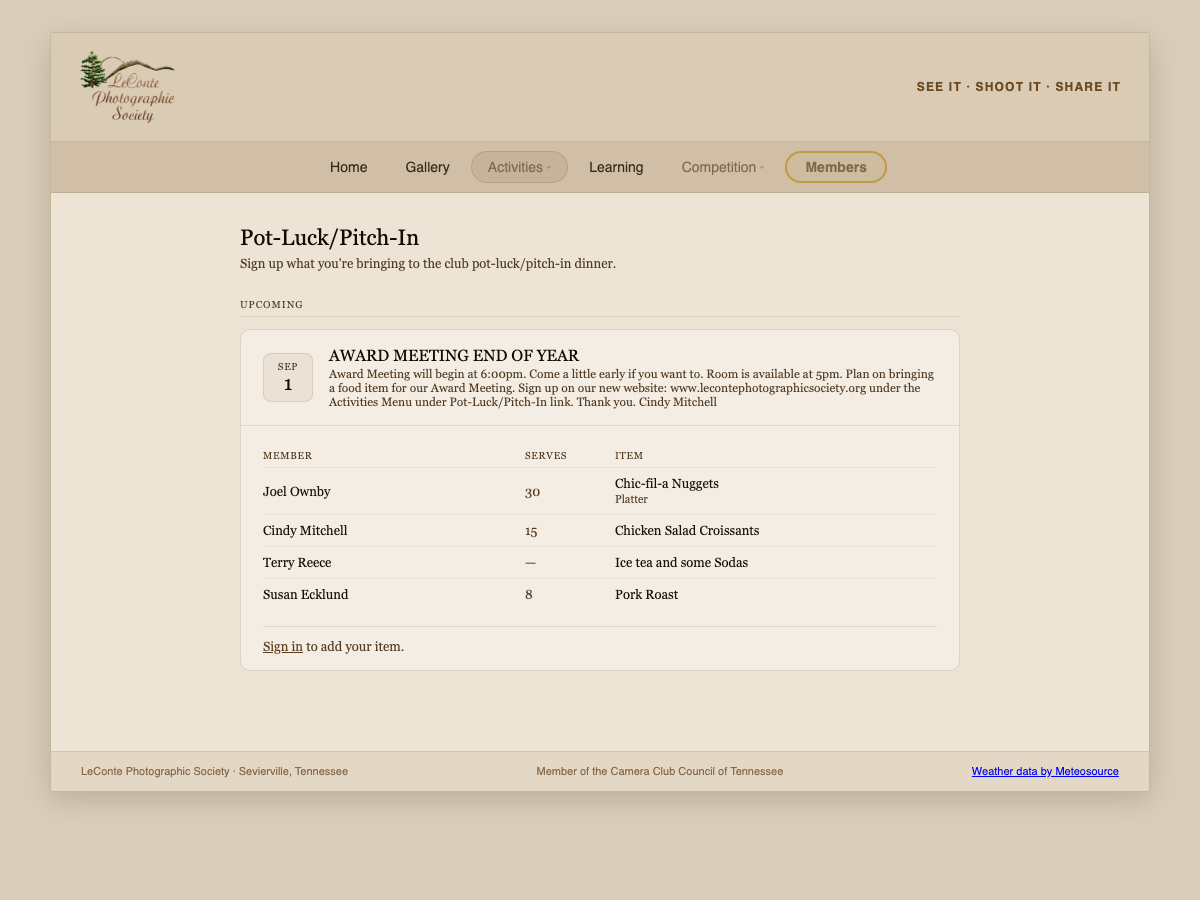
The Pot-Luck/Pitch-In page when not signed in, with a Sign in link at the bottom of the item list
Not signed in — notice the "Sign in" link at the bottom of the list

Just click the Sign in link right there on the page, log in with your member email and password, and you'll be brought right back here — ready to add your item.
Club How-To · Pot-Luck/Pitch-In Sign-Up
Once You're On The Page
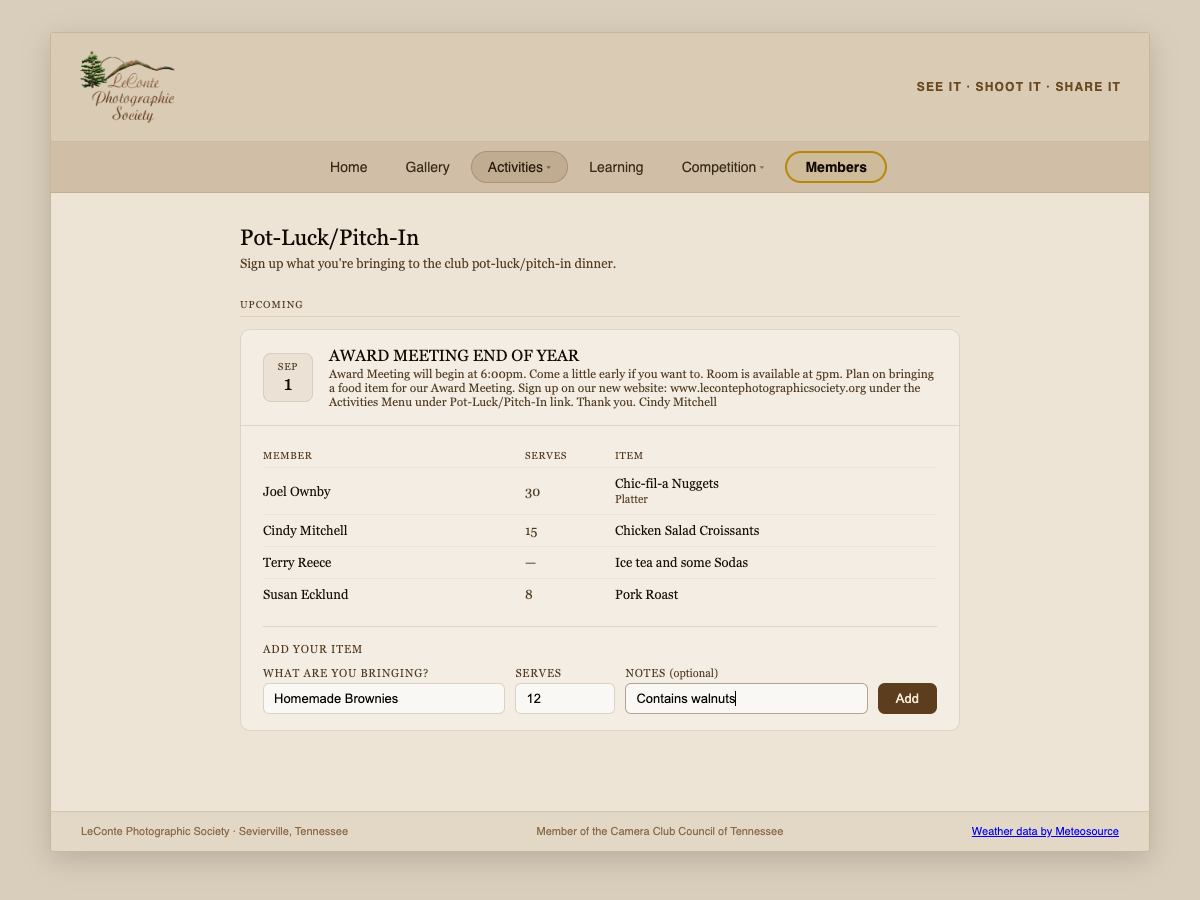
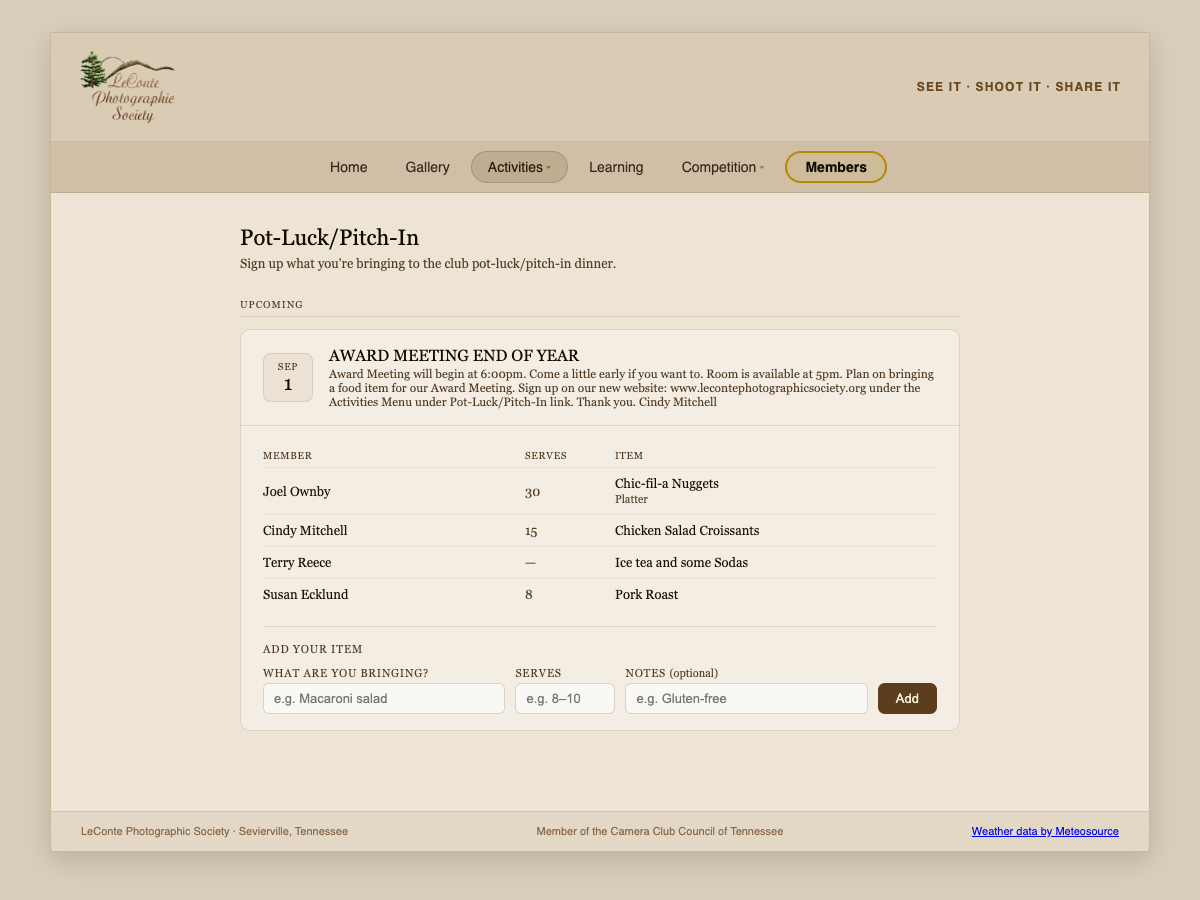
The Pot-Luck/Pitch-In page when signed in, showing the upcoming meeting, the list of items, and the Add your item form
Signed in — the full page
  1. A
    The date box and meeting details
    Shows which meeting the pot-luck is for, and any notes from the organizer.
  2. B
    The list of what's already signed up
    Member name, how many it serves, and the item — updated the moment someone adds theirs.
  3. C
    "Add your item" form at the bottom
    This is where you tell the club what you're bringing.
Club How-To · Pot-Luck/Pitch-In Sign-Up
Step 2: Fill Out Your Item
  1. 1
    "What are you bringing?"
    Type the name of your dish — this is the only required box. Example: "Macaroni salad".
  2. 2
    "Serves" (optional)
    A rough headcount helps the organizer plan. Example: "8–10".
  3. 3
    "Notes" (optional)
    Good place for allergy or diet info. Example: "Gluten-free" or "Contains walnuts".
  4. 4
    Click the brown "Add" button
    That's it — your item is saved.
The Add your item form filled out with Homemade Brownies, serves 12, notes Contains walnuts
Filled out and ready to click Add
Club How-To · Pot-Luck/Pitch-In Sign-Up
You're Signed Up!
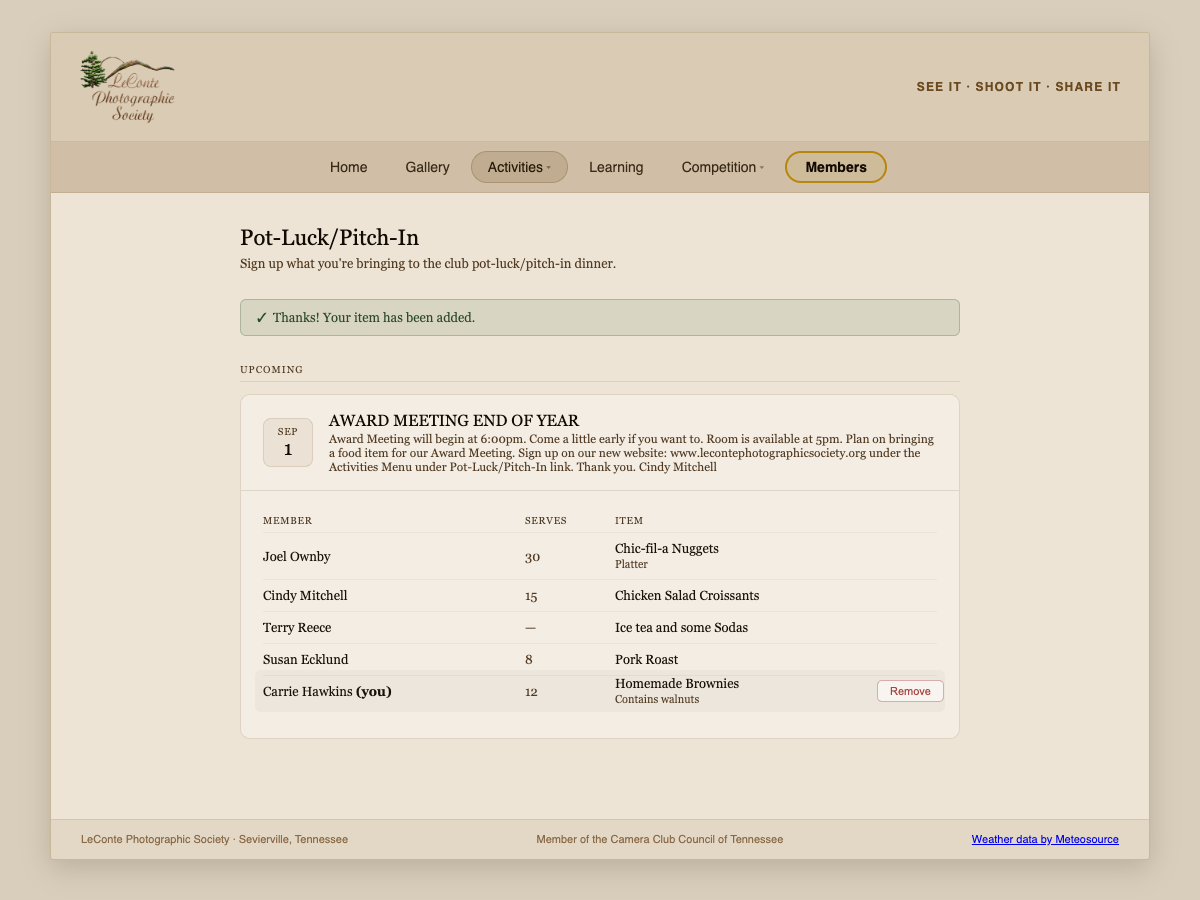
The page after signing up, showing a green confirmation banner and the member's own row marked (you) with a Remove button
A green banner confirms it, and your row is marked "(you)"
Look for the green banner
"Thanks! Your item has been added." confirms it went through.

Your item now shows up in the list for everyone to see, with (you) next to your name so it's easy to spot. Anyone planning the meal can now count your dish in.

Club How-To · Pot-Luck/Pitch-In Sign-Up
One Item Per Meeting
ℹ️
The "Add your item" form disappears after you sign up
That's not a mistake — the page only lets you have one active item per pot-luck at a time.

If you're bringing more than one thing — say, a main dish and a dessert — just list them together in the same box, like "Pork roast + banana pudding", or add the second item as a note.

Want to bring something different instead? See the next slide.

Club How-To · Pot-Luck/Pitch-In Sign-Up
Changing Or Removing Your Item
  1. 1
    Find your row in the list
    Look for "(you)" next to your name.
  2. 2
    Click the "Remove" button
    It's the small button on the right side of your row.
  3. 3
    Confirm the pop-up
    Your browser will ask "Remove your entry?" — click OK.
  4. 4
    The "Add your item" form comes back
    Fill it out again with your new dish, serves, and notes, then click Add.
💡
Changed your mind about what to bring?
There's no separate "Edit" button — just Remove your old entry, then Add the new one. It only takes a few seconds.
Club How-To · Pot-Luck/Pitch-In Sign-Up
A Few Friendly Tips
📝
Be specific
"Chicken salad croissants" is more helpful than just "Food".
🔢
Fill in Serves
Even a rough number helps the host plan for enough food.
🥜
Use Notes for allergies
"Gluten-free," "vegetarian," or "contains nuts" helps everyone eat safely.
👀
Check the list first
Scroll through before adding — it helps avoid five of the same dish.
Club How-To · Pot-Luck/Pitch-In Sign-Up
You've Got This!
1
Sign in
Member email & password
2
Activities
→ Pot-Luck/Pitch-In
3
Fill & Add
Item, serves, notes
4
Remove & redo
Any time before the meeting
THANK YOU
Thanks for feeding the club! 😊
If you ever get stuck, ask any officer — or just try the steps again. You can always Remove and re-add right up until the meeting.
⌂ Index